
Total 325 Questions
Last Updated On : 6-Oct-2026

After a deal is closed, Cloud Kicks (CK) wants to assign a user as a customer service
manager (CSM) in addition to the account owner and would like a new field to easily track
and report which CSM is assigned to the Account.
Which solution should an app builder use for this request?
A. Multi-select picklist Meld
B. Picklist field
C. Lookup field
D. Text field
Explanation:
The solution that an app builder should use for this request is a lookup field. A lookup field
is a type of relationship field that links two objects together and allows users to select a
record from another object. The app builder can create a lookup field on the account object
that references the user object and allows users to assign a customer service manager
(CSM) to the account.
Option A is incorrect because a multi-select picklist field is not
suitable for this request, as multi-select picklist fields allow users to select multiple values
from a predefined list, not from another object.
Option B is incorrect because a picklist field
is not suitable for this request, as picklist fields allow users to select one value from a
predefined list, not from another object.
Option D is incorrect because a text field is not
suitable for this request, as text fields allow users to enter any alphanumeric characters,
not from another object.
Universal Containers (UC) tracks Account locations in Zip Code, a custom text field with a
validation rule to enforce proper formatting of the US ZIP+4 code for UC's orders.
What formula should the app builder create on Order to display only the first five digits of
Zip Code from the parent Account?
A. BEGINS(Account.Zip_Code_r, 5)
B. TEXT(Account.Zip_Code_c, 5)
C. LEFT(Account.Zip_Code_c, 5)
D. LPAD(Account.Zip_Code__r, 5)
Explanation:
The requirement is to create a formula field on the Order object that displays only the first five digits of the Zip Code from the parent Account’s custom text field, Zip_Code__c, which is formatted as a US ZIP+4 code (e.g., "12345-6789"). The Salesforce formula function LEFT is the most appropriate choice for extracting a specified number of characters from the start of a text string.
C. LEFT(Account.Zip_Code__c, 5):
The LEFT function extracts the specified number of characters from the left side of a text string. In this case, LEFT(Account.Zip_Code__c, 5) retrieves the first five characters from the Zip_Code__c field on the parent Account (e.g., "12345" from "12345-6789"). Since Order likely has a lookup or master-detail relationship to Account, the formula uses __c for the custom field (not __r, which is used for relationship names in formulas). This formula correctly meets the requirement.
Why not the other options?
A. BEGINS(Account.Zip_Code__r, 5):
The BEGINS function checks if a text string starts with a specified substring and returns a Boolean (true/false), not a portion of the string. For example, BEGINS(Account.Zip_Code__c, "123") would return true if the zip code starts with "123", but it cannot extract characters. Additionally, __r is incorrect here, as it’s used for the relationship name, not the field itself.
B. TEXT(Account.Zip_Code__c, 5):
The TEXT function converts a value (e.g., a number, date, or picklist) to a text string but does not support extracting a specific number of characters. It takes a single argument (e.g., TEXT(NumberField)), and adding a second argument like 5 is invalid syntax. This option doesn’t achieve the requirement.
D. LPAD(Account.Zip_Code__r, 5):
The LPAD function pads a text string with a specified character to reach a desired length, adding characters to the left if the string is too short. It does not extract characters. For example, LPAD("123", 5, "0") would return "00123", not truncate to five characters. Also, __r is incorrect for referencing the field directly.
Additional Notes:
The formula assumes a relationship exists between Order and Account (e.g., a lookup or master-detail field like AccountId). In the formula, Account.Zip_Code__c correctly references the custom field on the parent Account.
The US ZIP+4 format is typically "XXXXX-YYYY" (e.g., "12345-6789"), and extracting the first five digits ("12345") aligns with the requirement.
The formula field on Order should be set to return a Text output type to display the five-digit zip code.
References:
Salesforce Help: Formula Operators and Functions (Details the LEFT function for extracting characters).
Salesforce Trailhead: Use Formula Fields (Covers creating formula fields for custom logic).
Salesforce Help: Custom Field Relationships (Explains referencing parent fields in formulas using __c).
Ursa Major Solar (UMS) has a custom object where they track Galactic Vendors. The
object has four custom fields for the Galactic Vendors's location: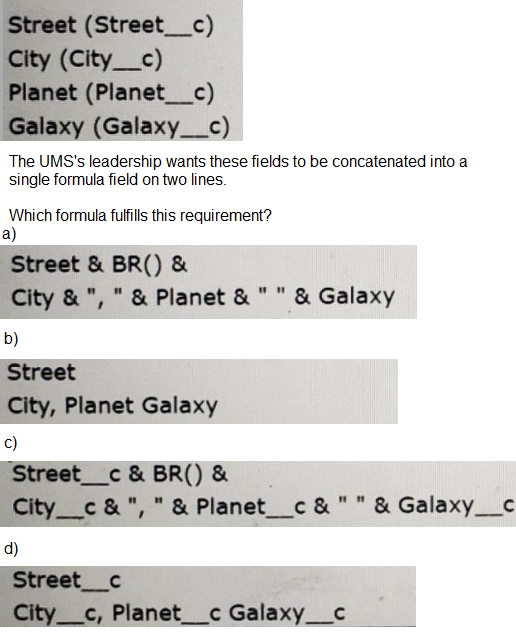
A. Option A
B. Option B
C. Option C
D. Option D
Explanation:
The requirement is to concatenate four custom fields—Street__c, City__c, Planet__c, and Galaxy__c—into a single formula field that displays the result on two lines.
Option C fulfills this by:
Street__c & BR() &
City__c & ", " & Planet__c & " " & Galaxy__c
Street__c appears on the first line
BR() inserts a line break
City__c, Planet__c, and Galaxy__c are concatenated on the second line with proper formatting
This is the correct syntax for a Text formula field in Salesforce that includes a line break and concatenates multiple fields.
🔍 Why the other options don’t work:
A. Uses field names without __c suffix
Invalid references to custom fields
B. Just a string, not a formula
Doesn’t use field references or line breaks
D. No concatenation or formatting
Just lists field names without logic
🔗 Reference:
Formula Field Functions – Salesforce Help
BR() is a valid function in Text formulas to insert a line break
An app builder wants to create a new field using Schema Builder.
Who will get access to the new field by default?
A. Standard profiles
B. No profiles
C. Internal profiles
D. All profiles
Explanation:
When an app builder creates a new field using Schema Builder in Salesforce, the field is added to the object and, by default, is accessible to all profiles unless specific field-level security (FLS) settings are configured afterward. This means that the field is visible and editable by all users, regardless of their profile, unless the app builder explicitly modifies the field’s visibility through Field-Level Security settings in the Profiles or Permission Sets. This default behavior ensures that new fields are immediately available across the organization, allowing for quick deployment, with the ability to restrict access later as needed.
Why not the other options?
A. Standard profiles:
Standard profiles (e.g., System Administrator, Standard User) do not receive exclusive default access. All profiles, including both standard and custom ones, inherit access to the new field unless restricted.
B. No profiles:
This is incorrect because new fields are not hidden by default; they are accessible to all users unless security settings are applied to limit access.
C. Internal profiles:
The term "internal profiles" is not a standard Salesforce classification, and access is not limited to internal users (e.g., employees) versus external users (e.g., partners or customers) by default. All profiles, including those for internal and external users, get access unless restricted.
Additional Notes:
After creating the field, the app builder should review and adjust Field-Level Security in the Profile or Permission Set settings to enforce the desired access levels (e.g., Read-Only, Hidden) based on organizational requirements.
This behavior applies to custom fields on custom or standard objects created via Schema Builder or the Object Manager.
References:
Salesforce Help: Field-Level Security (Explains that new fields are accessible to all profiles by default until FLS is configured).
Salesforce Trailhead: Customize a Salesforce Object (Covers field creation and default accessibility in Schema Builder).
Salesforce Help: Schema Builder Overview (Details the process of adding fields and their initial accessibility).
Universal Containers asked the app builder to ensure when an account type changes to
'Past-Customer' the contacts directly related to that account get an updated status of 'Re-
Market'.
Which automation should the app builder use to accomplish this task?
A. Screen flow
B. Lightning component
C. Validation rule
D. Record triggered flow
Explanation:
Why:
A record-triggered Flow on Account (run after save, on Update) can check if Type changed to “Past-Customer” and then update related Contact records to set Status = “Re-Market.” You can do this with Update Related Records (no loops needed).
Why not the others
A. Screen flow — requires user interaction; not automatic on field change.
B. Lightning component — UI component, not the right tool for background automation.
C. Validation rule — prevents bad data; it can’t update related records.
Universal Containers has a Lightning record page that supports both the mobile app and
desktop. An app builder has downloaded a custom Lightning component from
AppExchange, but users are unable to view the component on mobile devices.
What can be the issue?
A. The record page needs to be activated.
B. The component has been developed for Desktop Pages.
C. The component needs to be activated.
D. The record page template is unable to support mobile devices.
Explanation:
Universal Containers has a Lightning record page that supports both the mobile app and desktop, and a custom Lightning component downloaded from AppExchange is not visible on mobile devices. The most likely issue is that the component has been developed for Desktop Pages only. Many AppExchange components are designed and optimized for desktop use, and their documentation or metadata may indicate they are not compatible with the Salesforce mobile app (e.g., Salesforce Mobile App or Lightning Experience on mobile browsers). To be mobile-compatible, a Lightning component must explicitly support the Salesforce mobile framework, which requires the developer to ensure responsiveness and compatibility with the mobile runtime.
Why not the other options?
A. The record page needs to be activated:
If the record page were not activated, it would not be visible on either desktop or mobile, and the issue specifies that users can see the page on desktop but not mobile. Activation applies to the entire page, not selective components, so this is not the cause.
C. The component needs to be activated:
Lightning components from AppExchange are typically installed and available for use once deployed, unless explicitly deactivated by an administrator. Deactivation would affect visibility on both desktop and mobile, not just mobile, making this unlikely.
D. The record page template is unable to support mobile devices:
The problem states that the record page supports both the mobile app and desktop, implying the template (e.g., a standard or custom Lightning page template) is mobile-compatible. The issue is specific to the component, not the template, so this is not the root cause.
Additional Notes:
To confirm, the app builder should check the component's documentation on AppExchange or contact the publisher to verify its mobile compatibility.
If the component is desktop-only, the builder could explore alternatives (e.g., a mobile-compatible version) or customize the page to hide the component on mobile using the Lightning App Builder's "Component Visibility" filter (e.g., based on device type).
References:
Salesforce Help: Lightning Components for Mobile (Details mobile compatibility requirements for components).
Salesforce Trailhead: Build UI with Lightning Components (Covers component development and deployment considerations).
AppExchange: Component Listings (Often includes mobile compatibility notes in component descriptions).
An App Builder is loading the data into salesforce. To link the new records back to the legacy system, a field will be used to track the legacy ID on the account object. For future data loads this ID will be used when upserting records. Which field attribute should be selected? Choose 2 answers
A. Unique
B. Required
C. External ID
D. Text (encrypted)
Explanation:
The requirement is to use a field to store a legacy system ID for the purpose of linking records during future data loads (upserts). This is a classic use case for an External ID field.
Why C (External ID) is Correct:
This is the primary attribute needed. Marking a field as an External ID allows it to be used as a unique identifier for upsert operations in the Data Import Wizard, Data Loader, or other APIs. When you upsert records, you can specify this External ID field to match records from your source file to existing records in Salesforce, updating them if they exist or creating them if they don't.
Why A (Unique) is Correct:
For an External ID to work reliably for upserts, it must be unique. If the legacy ID values are not unique, the upsert operation will fail because Salesforce won't be able to determine which single record to update. Therefore, selecting the Unique attribute is mandatory to ensure data integrity and the success of the upsert process.
Why B (Required) is Incorrect:
While you might want this field to be populated, making it Required is not necessary for the upsert operation to work. The upsert process only uses the External ID to find a match. If the field is blank in your source file for a new record, the upsert will simply create a new record with a blank value in that field. Making it required could unnecessarily complicate your data load if the legacy system has any missing IDs.
Why D (Text (encrypted)) is Incorrect:
An encrypted text field cannot be used as an External ID or have a unique index. The encryption prevents Salesforce from indexing the values, which is a prerequisite for both the External ID and Unique attributes. Therefore, this field type is incompatible with the stated requirement.
Reference:
Salesforce Help Article: "Upserting Records" and "External ID Fields." The documentation clearly states that an external ID is a field that can store a record identifier from a system outside of Salesforce and that you can use upsert to match against this field. It also notes that the field must have the "External ID" attribute selected and typically should be unique.
What is the process to upgrade an unmanaged package that is currently installed in production?
A. Uninstall the current version and install the new version.
B. Use the Install Wizard to install the upgrade to production.
C. Install the new version to a Developer org then deploy to production.
D. Click the update link on the Installed Packages page.
Explanation:
To upgrade an unmanaged package that is currently installed in a production org, the recommended process is to use the Installed Packages page in Salesforce Setup. An unmanaged package is a collection of components (e.g., custom objects, fields, workflows) that, once installed, cannot be upgraded in the traditional sense like managed packages because the source code and metadata remain editable by the installing org. However, if the package publisher releases an updated version, users can upgrade by navigating to Setup > Installed Packages, locating the package, and clicking the Update link (if available). This initiates the upgrade process, installing the new version over the existing one while preserving customizations made in the org.
Why not the other options?
A. Uninstall the current version and install the new version:
Uninstalling an unmanaged package removes all associated components and any customizations, which is not a viable upgrade path as it would require rebuilding custom work. This approach is disruptive and incorrect for upgrading.
B. Use the Install Wizard to install the upgrade to production:
The Install Wizard is used for initial installation of a package, not for upgrading an existing one. For an upgrade, the Installed Packages page provides the specific update mechanism, making this option inaccurate.
C. Install the new version to a Developer org then deploy to production:
This process applies to custom development or managed packages with change sets or deployment tools (e.g., Salesforce DX), not unmanaged packages. Unmanaged packages do not support deployment from a Developer org to production as a standard upgrade method, and this would overwrite the production org's customizations incorrectly.
Additional Notes:
The availability of an update link depends on the package publisher releasing a new version and the org having internet access to check for updates.
After clicking the update link, follow the prompts to review and confirm the changes, ensuring no conflicts with existing customizations.
Test the upgrade in a sandbox (if available) before applying it to production to mitigate risks, though this is a best practice rather than a required step.
References:
Salesforce Help: Install and Upgrade Packages (Explains the update process for installed packages).
Salesforce Trailhead: Package Basics (Covers unmanaged package behavior and upgrade options).
Salesforce Help: Unmanaged Packages (Details limitations and upgrade process).
The app builder at Northern Trail Outfitters created a report type for opportunities with or without shipments. The operations team wants to see the account rating Information on the
report.
What should the app builder do to fulfill this request?
A. Change the primary object of the custom type to the Account object.
B. Add the Account Rating field to the opportunity record page.
C. Use add fields related via lookup with the view set to opportunities.
D. Change the account/opportunity relationship to a master/detail relationship.
Explanation:
Why this is correct:
Your custom report type’s primary object is Opportunities. Because Opportunity looks up to Account, you can edit the report type layout and use Add fields related via lookup to pull in fields from the parent Account—such as Account → Rating—so they’re selectable in reports built from that type.
Why the others are wrong:
A. Change the primary object to Account — You can’t change a report type’s primary object after creation, and switching to Account wouldn’t match the “Opportunities with or without Shipments” use case.
B. Add the Account Rating field to the opportunity record page — Page layouts don’t control reportable fields. Reporting availability comes from the report type layout, not the record page.
D. Change the account/opportunity relationship to master/detail — The standard Account–Opportunity relationship is a lookup and can’t be made master-detail. It’s also unnecessary; related lookup fields are reportable via the custom report type layout.
Reference:
Custom Report Types → Edit Layout → Add fields related via lookup (lets you include parent-object fields like Account fields on an Opportunity-based report type).
Ursa Major Solar (UMS) uses a public sharing model for accounts. UMS would like to move
to a more restrictive sharing model but wants the Sales team to continue to have access to
all account records with the sales record type.
Which two actions should an app builder complete to implement this change?
(Choose 2 answers)
A. Update the Sales profile.
B. Update the organization-wide defaults
C. Create a criteria-based sharing rule.
D. Create an owner-based sharing rule.
Explanation:
Ursa Major Solar (UMS) currently uses a public sharing model for accounts (likely Public Read/Write or Public Read Only), and they want to move to a more restrictive sharing model (e.g., Private) while ensuring the Sales team retains access to all accounts with the Sales record type. This requires adjusting the organization-wide defaults (OWD) and using a sharing rule to grant specific access. Here’s how:
B. Update the organization-wide defaults:
Changing the OWD for the Account object to a more restrictive setting (e.g., Private) is the first step to enforce a tighter sharing model. This limits access to account records to the record owner and users with higher access (e.g., via roles or sharing rules), replacing the public access model. This aligns with the goal of moving to a restrictive sharing model.
C. Create a criteria-based sharing rule:
A criteria-based sharing rule can grant access to all accounts with the Sales record type to the Sales team. The rule can be configured with a criterion like RecordType.Name = 'Sales' and share those records with a public group, role, or role hierarchy containing the Sales team members, setting access to Read Only or Read/Write as needed. This ensures the Sales team retains access to the specified records post-OWD change.
Why not the other options?
A. Update the Sales profile:
Updating the Sales profile (e.g., modifying object or field permissions) does not directly address record-level access based on record type. Profiles control permissions (e.g., Create, Read, Edit) but not sharing rules or record visibility, which are managed by OWD and sharing rules. This is insufficient for the requirement.
D. Create an owner-based sharing rule:
An owner-based sharing rule grants access based on the record owner’s role or public group (e.g., sharing records owned by Sales reps with managers). However, this does not guarantee access to all accounts with the Sales record type, especially if ownership varies across teams. A criteria-based rule is more precise for targeting record type, making this less suitable.
Implementation Notes:
Change the Account OWD to Private via Setup > Security > Sharing Settings.
Create a criteria-based sharing rule under Sharing Settings > Account Sharing Rules, setting the criterion to RecordType.Name = 'Sales' and assigning access to the Sales team’s role or public group.
Test the change in a sandbox to ensure no unintended access restrictions occur.
References:
Salesforce Help: Set Organization-Wide Sharing Defaults (Explains OWD configuration).
Salesforce Help: Create Criteria-Based Sharing Rules (Details how to use record type in sharing rules).
Salesforce Trailhead: Data Security (Covers OWD and sharing rule concepts).
| Page 7 out of 33 Pages |
| 234567891011 |
| Platform-App-Builder Practice Test Home |
Our new timed 2026 Platform-App-Builder practice test mirrors the exact format, number of questions, and time limit of the official exam.
The #1 challenge isn't just knowing the material; it's managing the clock. Our new simulation builds your speed and stamina.
You've studied the concepts. You've learned the material. But are you truly prepared for the pressure of the real Salesforce Certified Platform App Builder - Plat-Admn-202 exam?
We've launched a brand-new, timed Platform-App-Builder practice exam that perfectly mirrors the official exam:
✅ Same Number of Questions
✅ Same Time Limit
✅ Same Exam Feel
✅ Unique Exam Every Time
This isn't just another Platform-App-Builder practice questions bank. It's your ultimate preparation engine.
Enroll now and gain the unbeatable advantage of:

Copyright © - All Rights Reserved