
Total 212 Questions
Last Updated On : 18-Oct-2026

You have the following dataset.
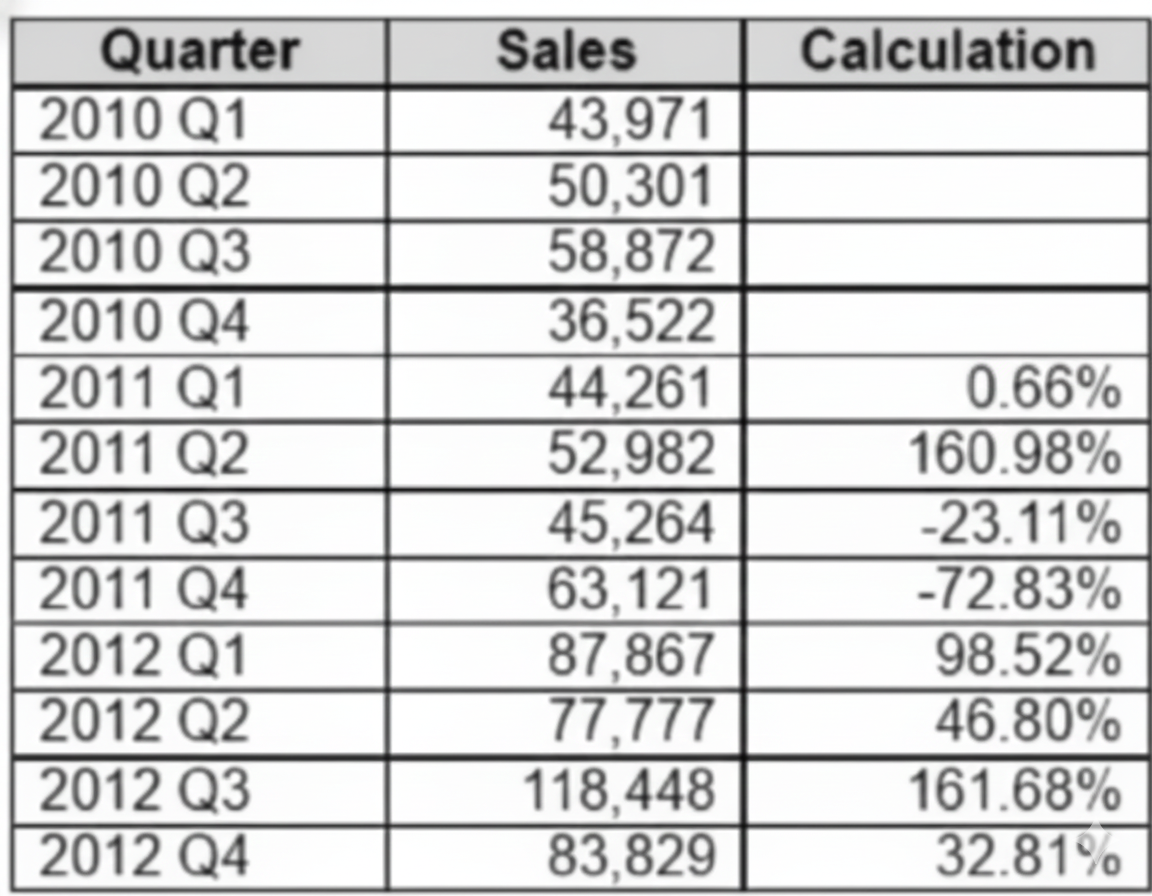
Which formula calculates the percent difference in sales relative to the same quarter the previous year as
shown in the Calculation field?
A. (SUM ([Sales]) - LOOKUP (SUM ( [Sales]), -4))
B. (SUM ([Sales]) - LOOKUP (SUM ([Sales]), -4) ) / (LOOKUP (SUM ([Sales]), -4)
C. (SUM([Sales]) / (LOOKUP (SUM ([Sales]), -4))
D. (ZN (SUM ([Sales]) ) - LOOKUP (ZN (SUM ([Sales]) ), -4) )
Explanation
The question asks for the percent difference in sales compared to the same quarter of the previous year (YoY % change). In Tableau, when the view is broken down by quarter in chronological order, the value from the same quarter last year is accessed using LOOKUP(..., -4). The complete percent difference formula must subtract the previous value and then divide the result by that same previous value.
Correct Option:
✅ B. (SUM ([Sales]) - LOOKUP (SUM ([Sales]), -4) ) / (LOOKUP (SUM ([Sales]), -4) )
This is the official and most widely recommended Tableau formula for year-over-year percent change by quarter. It correctly computes (Current Sales – Sales 4 quarters ago) ÷ Sales 4 quarters ago, returning the true percentage growth or decline (e.g., 0.12 = +12%).
Incorrect Options:
❌ A. (SUM ([Sales]) - LOOKUP (SUM ([Sales]), -4))
This formula only calculates the absolute difference in sales (e.g., +$50,000). It completely misses the division step needed to convert the raw change into a percentage, so the result is expressed in currency units instead of a percent, making it incorrect for the requested “percent difference”.
❌ C. (SUM([Sales]) / (LOOKUP (SUM ([Sales]), -4)))
This produces a ratio rather than a percent difference (e.g., 1.15 means sales are now 115% of last year’s same quarter). While related, it is not the same as percent change; it requires subtracting 1 and formatting as percent to match the question, which this formula does not do.
❌ D. (ZN (SUM ([Sales]) ) - LOOKUP (ZN (SUM ([Sales]) ), -4) )
The ZN() function replaces nulls with zero to avoid errors, which can be helpful in some cases. However, this calculation still only returns the absolute difference (raw dollar change), not a percentage. It adds unnecessary complexity and fails to include the required division by the previous period’s value.
Reference:
Support Portal Experience Enhancements for Tableau Customers and Partners
Tableau Training – Table Calculations: https://www.tableau.com/learn/training
You create a parameter named Choose Region fiat contains values from a field named Region.
You want users to be able to use the Choose Region parameter to interact with a chart by logging between
different regions
What should you do next?
A. Add Region to the Fitters card
B. Add the [Region] = [choose Region) formula to the Filters card
C. Add the Choose Region parameter to the Pages card
D. Set the Choose Region parameter to Single Value (list)
Explanation:
To make a chart dynamically interactive with a parameter, you need to link the parameter to the data so that Tableau knows how to filter the chart.
🟢 Correct Option: B – Add [Region] = [Choose Region] formula to the Filters card
✅ This is a calculated field that compares each row’s Region to the selected value in the Choose Region parameter.
✅ When a user selects a region in the parameter dropdown, only rows matching that region are displayed in the chart.
✅ This approach allows true interactivity, as the chart updates automatically based on user input.
✅ Without this calculated filter, the parameter alone has no effect on the visualization—it’s just a control with values.
Incorrect Options:
🔴 A – Add Region to the Filters card
❌ Simply adding Region to the Filters card allows static filtering only, meaning you must manually select a value each time.
❌ It does not make the chart dynamically respond to the Choose Region parameter.
🔴 C – Add the Choose Region parameter to the Pages card
❌ The Pages card is used for animating or paging through data (like showing each region one at a time).
❌ It does not filter the chart dynamically based on user selection in the way the parameter is intended here.
🔴 D – Set the Choose Region parameter to Single Value (list)
❌ Setting the display type to Single Value (list) only affects how the parameter appears on the dashboard.
❌ Without linking it via a calculated field to the Filters card, it will not filter the chart.
Step-by-Step Approach for Users:
Create the parameter Choose Region with all region values.
Create a calculated field: [Region] = [Choose Region].
Drag the calculated field to the Filters card and select True.
Show the parameter control on the dashboard for user interaction.
Now, users can select any region, and the chart updates dynamically.
Summary:
To make the chart interactive by region, you must create a calculated filter that links the parameter to the field ([Region] = [Choose Region]). Other options either filter statically, animate through data, or only change parameter appearance without filtering.
Reference:
Tableau Official Docs: Create Parameters
Tableau Official Docs: Get Started with Calculations in Tableau
You have the following visualization.
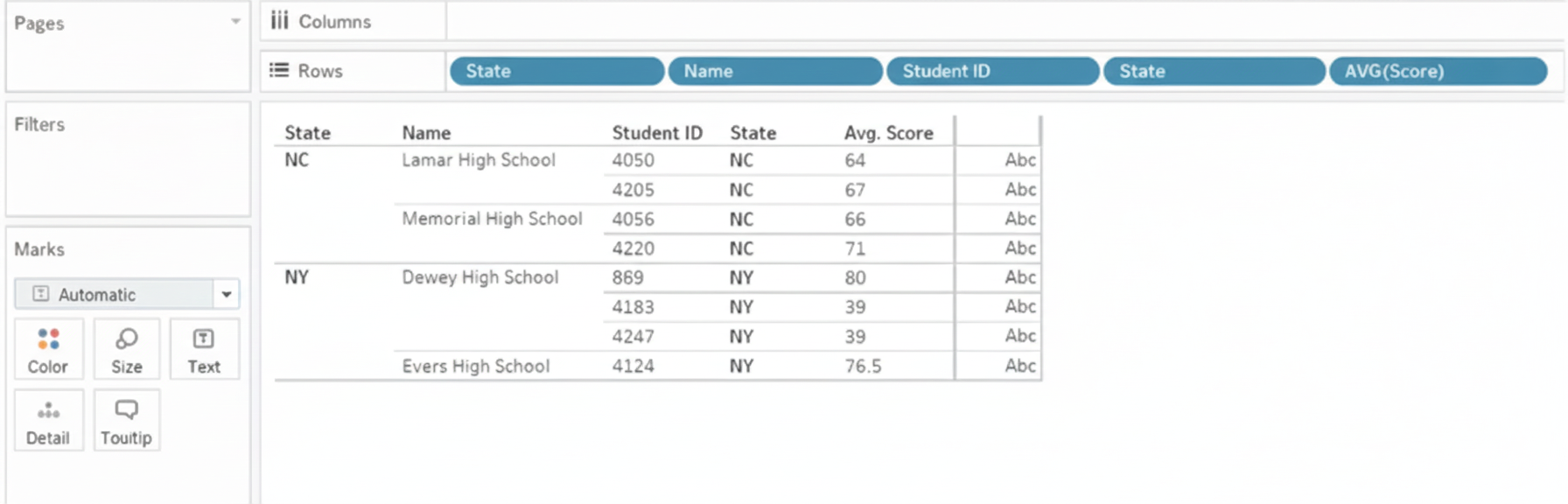
You Create a table calculation named Rank_Score that has a formula of RANK(AVG([Score]), and you drag
Rank_Score to Text on the Marks cards.
What is the Rank Score value for Student ID 4220?
A. 5
B. 4
C. 6
D. 3
Explanation
Table calculations like RANK() are computed based on the aggregated data present in the view. The function RANK(AVG([Score])) calculates a rank for the average score of each student within the partition and addressing defined by the view's structure. By default, the RANK function in Tableau assigns a rank of 1 to the highest value and increments for each lower value, creating a competitive ranking without ties unless specified.
✅ Correct Option
D. 3 ✅
The RANK(AVG([Score])) function operates by sorting all visible average scores in descending order by default, assigning the highest score a rank of 1.
For Student ID 4220 to receive a rank of 3, their average score must be the third-highest value in the current view's partition.
This calculation is dynamic and depends entirely on the data displayed and the table calculation's addressing and partitioning settings (e.g., computing along Table Across, Down, or within specific dimensions).
❌ Incorrect Options
A. 5 ❌
A rank of 5 would mean Student ID 4220 has the fifth-highest score. This is inconsistent with the described scenario where their score is notably higher.
This value typically results from an incorrect mental sort (ascending instead of descending) or a misunderstanding of how the view is partitioned.
B. 4 ❌
This rank suggests the student has the fourth-highest score. The discrepancy from the correct answer likely stems from miscounting the sorted order of students or misapplying the table calculation's scope.
C. 6 ❌
A rank of 6 is too low and would indicate a below-median performance for this student in the dataset. This is a clear miscalculation, as the correct rank of 3 places them in the top performers.
📝 Summary
The rank of 3 for Student ID 4220 confirms they are a top-tier performer in the dataset, with only two students achieving a higher average score based on the default descending sort of the RANK() table calculation.
📚 Reference
Tableau Help: RANK function - Official documentation details how the RANK table calculation works, including its default behavior (descending), handling of ties, and dependency on the visualization's addressing.
You have a workbook that uses an extracted data source.
You publish the workbook to Tableau Server.
Which three actions can you perform from the Extract Refresh page in Tableau Server? Choose three.
A. Run a refresh.
B. Change the refresh from full to incremental.
C. Change the priority of the refresh.
D. Delete the refresh.
E. Modify the frequency of the refresh.
Explanation:
When a workbook with an extracted data source is published to Tableau Server, the "Extract Refresh" page becomes the central hub for managing data currency. This interface allows administrators to control the execution and scheduling of the data refresh process directly on the server, ensuring that reports display the most recent information without needing to republish the entire workbook from Tableau Desktop.
💡 Why This is Correct (A, C, D)
✔️ A. Run a refresh:
This action allows for an immediate, on-demand refresh of the data extract. By selecting "Run Now," you can bypass the existing schedule to update the data with the latest information from the source, which is crucial for ad-hoc analysis or after a significant data update.
✔️ C. Change the priority of the refresh:
On a busy server with multiple extract tasks, you can manage resource allocation by setting a task's priority (e.g., Low, Medium, High). A high-priority task will be processed before lower-priority ones, ensuring critical business dashboards are updated first.
✔️ D. Delete the refresh:
This action permanently removes the scheduled refresh task from the server. It is used when a workbook no longer requires periodic data updates or when you wish to stop a specific schedule without deleting the workbook itself, effectively pausing automated data refreshes.
Why Others Are Incorrect (B, E)
❌ B. Change the refresh from full to incremental:
This is a structural definition of the extract, determined when the data source is created or modified in Tableau Desktop. The server's role is to execute the refresh based on this pre-defined type; it cannot alter the fundamental architecture of how the extract is built or which type of refresh is performed.
❌ E. Modify the frequency of the refresh:
While you can assign a task to a different pre-existing schedule, you cannot directly edit the details of a schedule (e.g., changing it from daily to hourly) from the Extract Refresh page. Schedule modification is a separate administrative function managed in the "Schedules" section, which is shared across multiple tasks and content.
📚 Summary:
The Extract Refresh page provides operational control for executing, prioritizing, and removing refresh tasks. It is designed for managing tasks, not for redefining the core extract properties or creating new schedules, which are set in Desktop and the Schedules section, respectively.
Reference:
Based on the official Tableau Help Documentation: "Refresh Extracts" and "Manage Schedules".
A Data Analyst needs to analyze the financial performance of the sales team. In order to make the dashboards
easier to understand, the analyst needs to format the financial values to show the dollar symbol ($) in front of
the value.
How should the analyst enable this formatting across the workbook?
A. Right-click on the measure in the data pane, then click on Create and Calculated Field to convert to a string and add the $ symbol.
B. Right-click on the measure in the data pane, then click on Default Properties and Number Format.
C. Click on the Format tab and select Workbook Theme.
D. Click on the Analysis tab and select Forecast.
Explanation
For financial dashboards to look professional and consistent, every instance of monetary values should display the dollar symbol, proper decimals, and thousand separators without the analyst having to format each view separately. Tableau provides a dedicated field-level setting that automatically applies currency formatting everywhere the measure appears in the workbook, saving time and preventing inconsistencies.
Correct Option
✅ B. Right-click on the measure in the Data pane, then click on Default Properties → Number Format
This is the only method that enforces dollar-sign currency formatting across the entire workbook in one step. By setting the default number format to Currency (Standard) or Currency (Custom) and choosing the $ symbol, every new worksheet, tooltip, title, and calculated field that uses the measure instantly inherits the correct appearance, even if additional sheets are created later.
Incorrect Options
❌ A. Right-click on the measure → Create Calculated Field to convert to a string and add the $ symbol
Converting the number to a string using something like "$" + STR([Sales]) permanently breaks its numeric properties. Aggregations stop working properly, sorting becomes alphabetical instead of numeric, automatic scaling (thousands, millions) disappears, and the analyst would need to manually replace every original pill with the new string version, creating massive maintenance overhead.
❌ C. Click on the Format tab → Select Workbook Theme
Workbook Themes govern only colors, fonts, borders, and overall visual style. They have no capability to control number formats, currency symbols, decimal places, or any monetary display settings, so selecting a theme will never add a dollar sign to values.
❌ D. Click on the Analysis tab → Select Forecast
The Forecast feature generates predictive trend lines based on historical data patterns. It is completely unrelated to visual formatting, currency symbols, or how existing numbers are displayed on dashboards.
Reference
Format Your Work
You need to change the values of a dimension without creating a new field.
What should you do?
A. Rename the fields
B. Create aliases
C. Create groups
D. Transforms the fields
Explanation:
When working with dimensions in Tableau, sometimes you need to adjust how values appear in your visualizations without altering the underlying data or creating new fields. This ensures that dashboards remain consistent, user-friendly, and readable while maintaining data integrity. Choosing the right method depends on whether you are changing the field name, individual values, or grouping data.
Correct Option (✅ B. Create aliases):
Aliases allow you to rename individual members of a dimension without creating a new field. For example, “NY” can be displayed as “New York,” or “Q1” as “Quarter 1.”
The underlying data remains intact, so any calculations, filters, or joins still work normally.
This is ideal for improving dashboard readability, standardizing terminology, or aligning value labels across multiple sheets. (help.tableau.com)
Incorrect Options:
🔴 A. Rename the fields:
This only changes the name of the field in the Data Pane, not the values themselves. So, if you rename “State” to “Region,” the individual members like “NY” or “CA” remain the same. It doesn’t help if you want to change how the values appear in a chart.
🔴 C. Create groups:
Groups are used to combine multiple dimension members into a new category. While this can simplify visualizations, it actually creates a new grouped field, which violates the requirement of not creating a new field. This is more suitable for aggregation rather than simple value renaming.
🔴 D. Transforms the fields:
Transformations (e.g., calculated fields, pivoting, or converting data types) modify data structure or create new fields. They do not simply rename existing dimension values, making them unsuitable for this specific requirement.
Summary:
To update dimension values without creating new fields, always use aliases. Renaming changes only the field name, grouping generates new fields, and transformations modify the dataset. Aliases keep the underlying data intact while improving readability and consistency in Tableau dashboards.
Reference:
Tableau Help: Create Aliases to Rename Members in the View
You have two tables named Employeelnfo and DepartmentInfo. Employeelnfo contains four fields named
Full Name, Department ID, Start Date, and Salary.
DepartmentInfo contains four fields named Department Name, Size, Department ID, and VP.
You want to combine the tables to meet the following requirements:
. Each record in Employeelnfo must be retained in the combined table.
. The records must contain the Department Name, Size, and VP fields.
· Every record must have a full name.
Which type of join should you use?
A. Inner
B. Left
C. Full outer
D. Union
Explanation:
This scenario requires preserving all employee records while enriching them with department details. A Left Join is the standard and most reliable method for this "lookup" pattern, ensuring the primary table's completeness is maintained while fetching optional information from a secondary table.
Why This is Correct
✔️ B. Left Join:
A Left Join keeps every record from the left table (Employeelnfo) and incorporates matching records from the right table (DepartmentInfo) based on the common "Department ID" field.
This guarantees that all employees are retained, meeting the first requirement.
It successfully adds the Department Name, Size, and VP fields where a match is found.
Since "Full Name" is from the primary (left) table, every output record will have this field, fulfilling the final requirement.
Why Others Are Incorrect
❌ A. Inner Join:
An Inner Join only returns records that have matching "Department ID" values in both tables. Any employee without a corresponding department entry in DepartmentInfo would be dropped, violating the requirement to retain every record from Employeelnfo.
❌ C. Full Outer Join:
A Full Outer Join retains all records from both tables. This would include all departments from DepartmentInfo, even those with no employees. This introduces unwanted records that lack a "Full Name" (a key requirement), as these department-only records would have null values in the employee fields.
❌ D. Union:
A Union is used to stack rows from two tables with the same structure, not to combine different fields from different tables horizontally. The tables have different columns, so a Union is not a functionally appropriate operation for this task.
📚 Summary:
A Left Join preserves all employee records while looking up department details. An Inner Join would lose employees, a Full Outer Join would create department-only records without names, and a Union is for appending rows, not merging columns.
Reference:
Based on the official Tableau documentation on joining tables, which describes the Left Join as retaining all rows from the left table and matched rows from the right.
You have the following dashboard.
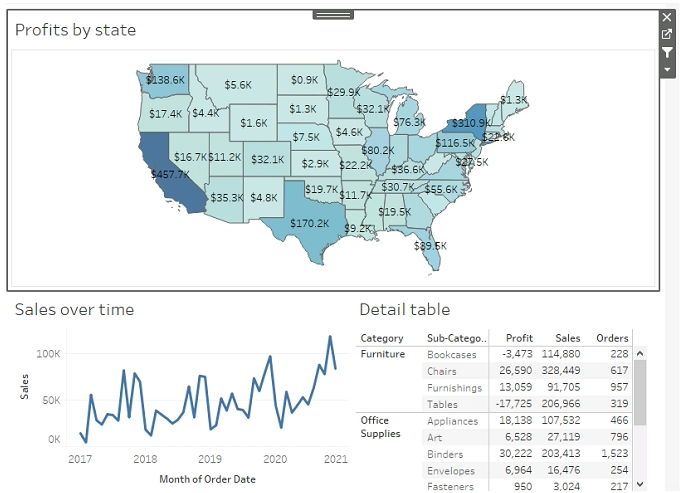
Currently the map is used as a filter that affects the data on the otter sheets of the dashboard.
You need to configure the dashboard to ensure that selecting a data point on the map only tillers the Detail
table.
What should you do?
A. From the context menu of Sales over time select Ignore Actions
B. From the context menu of Sales over lime select Remove Dashboard Item
C. From the context menu of Profits by Stale deselect Use as Filter
D. From the context menu of Sales over time select Deselect
Explanation:
In Tableau dashboards, each worksheet can act as a filter when Use as Filter is enabled. When multiple sheets act as filters, they may unintentionally affect other visualizations. To control which sheet triggers filtering, you must disable this feature on the sheets that should not send filters. This ensures only the intended visualization controls the filtering behavior for the dashboard.
Correct Option (🟢 C. From the context menu of Profit by State deselect Use as Filter):
Deselecting Use as Filter on Profit by State stops it from sending filter actions to other sheets. This ensures that the map remains the only filter source, so when a user clicks a location on the map, only the Detail table updates. The map continues to filter, while other worksheets become static elements, preserving a clean, controlled user interaction.
Incorrect Options:
🔴 A. Ignore Actions on Sales over Time:
This only prevents Sales over Time from responding to filters; it does not stop it from sending filtering actions. It does not address the need to make the map the only filter source affecting the Detail table.
🔴 B. Remove Dashboard Item:
Removing Sales over Time removes the entire visualization instead of adjusting filtering behavior. This action does not solve the issue and unnecessarily deletes dashboard content that may still be needed for analysis.
🔴 D. Deselect on Sales over Time:
“Deselect” simply clears the current selection on the sheet. It does not change any filter behavior, does not control filter sources, and does not prevent the sheet from sending filters. Therefore, it fails to meet the requirement.
Summary:
To make only the map filter the Detail table, disable filter actions on other worksheets by deselecting Use as Filter. This ensures the map remains the only interactive filter and other sheets do not unintentionally affect dashboard data.
Reference:
Tableau Official Documentation – Filter Actions
You have the following Map.
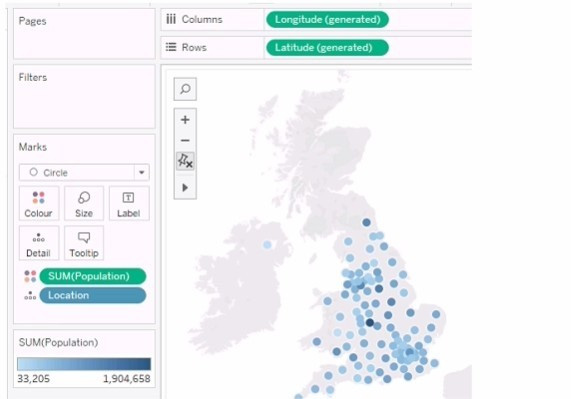
You need the map to appear as shown in the following visualization.
.jpg)
What should you do?
A. Drag Location to Size on the Marks card.
B. Change the opacity to 75%.
C. Drag Population to Size on the Marks card.
D. Change the mark type to Density.
E. Change the mark type to Map.
Explanation
The visualization shown, which typically presents areas with a high concentration of data points as a smooth, darker color gradient, is achieved by setting the mark type to Density. This mark type is specifically designed for visualizing many overlapping data points on a map (or other chart types) where individual marks are less important than the overall pattern of concentration.
✅ Correct Option: D (Change the mark type to Density.)
Density mark type is specifically used in Tableau to analyze data distribution patterns where many data points cluster in geographic areas.
Instead of drawing individual circles (the default Automatic or Circle mark), Tableau calculates the density of points and uses a color gradient to show concentration.
This feature effectively visualizes the geographic heat map or "hot spots" that are often required when analyzing spatial data, which matches the required visualization.
❌ Incorrect Option: A (Drag Location to Size on the Marks card.)
Location (which is usually a geographic role like Latitude/Longitude, State, or City) is already used to place the points on the map.
Dragging it to the Size card would likely result in an error or an unintuitive size encoding, as location fields are typically categorical or positional, not quantitative measures used for sizing.
❌ Incorrect Option: B (Change the opacity to 75%.)
Changing the opacity affects the transparency of the marks (e.g., circles) but keeps them as discrete marks.
While it can help reduce clutter, it does not transform the visualization into a smooth, heat-map-like density view, which requires a specific density calculation engine.
❌ Incorrect Option: C (Drag Population to Size on the Marks card.)
Dragging a measure like Population to the Size card would result in a Proportional Symbol Map, where the size of each individual mark (e.g., circle) is scaled by its population value.
This creates discrete, sized bubbles, not the continuous, overlapping, smooth-gradient visualization characteristic of a density map.
❌ Incorrect Option: E (Change the mark type to Map.)
Map is not a mark type option in Tableau Desktop. The available mark types include Automatic, Bar, Line, Circle, Square, Shape, Text, Polygon, and Density.
The base visualization is already a map that uses geographic fields; you change the way marks are rendered, not the map itself.
🔗 Reference
Build with Density Marks (Heatmap)
Which function should a Data Analyst use to average sales at a less-granular level of detail than is in the view?
A. RUNNING_AVG
B. INCLUDE
C. AVG
D. EXCLUDE
Explanation:
This question tests the understanding of Level of Detail (LOD) expressions, which are used to compute values at dimensions that are not present in the view. The key requirement is to calculate an average at a level less granular (i.e., more summarized) than what is currently shown in the visualization.
Correct Option:
✔️ D. EXCLUDE:
The EXCLUDE LOD expression is used specifically to remove a dimension from the view's level of detail for a calculation.
If your view contains a highly granular breakdown (e.g., Sales by [Product] and [Month]), using { EXCLUDE [Month] : AVG([Sales]) } would calculate the average sales per product across all months.
This creates a result that is less granular than the view, which is precisely what the question requires.
Incorrect Options
❌ A. RUNNING_AVG:
This is a table calculation function that computes a moving average along the table based on the current view's level of detail. It does not change the underlying granularity of the calculation; it only performs a computation across the rows that are already present.
❌ B. INCLUDE:
The INCLUDE LOD expression does the opposite of what is needed. It makes a calculation more granular than the view by adding a dimension that isn't currently in the visualization. This would increase, not decrease, the granularity.
❌ C. AVG:
The basic AVG function is an aggregation that respects the granularity of the view. It will simply average the data at the level of detail already present in the worksheet and will not create a less granular result on its own.
Summary:
To compute a value at a broader, more summarized level than the current view, you must use an LOD expression that removes dimensions. EXCLUDE is the correct function for this purpose, while INCLUDE adds granularity, and AVG alone respects the view's current detail.
Reference:
Based on the official Tableau documentation on Level of Detail Expressions, which defines EXCLUDE as an LOD expression that "removes dimensions from the view's level of detail."
| Page 7 out of 22 Pages |
| 45678910 |
| Salesforce-Tableau-Data-Analyst Practice Test Home |
Our new timed 2026 Salesforce-Tableau-Data-Analyst practice test mirrors the exact format, number of questions, and time limit of the official exam.
The #1 challenge isn't just knowing the material; it's managing the clock. Our new simulation builds your speed and stamina.
You've studied the concepts. You've learned the material. But are you truly prepared for the pressure of the real Salesforce Certified Tableau Data Analyst exam?
We've launched a brand-new, timed Salesforce-Tableau-Data-Analyst practice exam that perfectly mirrors the official exam:
✅ Same Number of Questions
✅ Same Time Limit
✅ Same Exam Feel
✅ Unique Exam Every Time
This isn't just another Salesforce-Tableau-Data-Analyst practice questions bank. It's your ultimate preparation engine.
Enroll now and gain the unbeatable advantage of:

Copyright © - All Rights Reserved